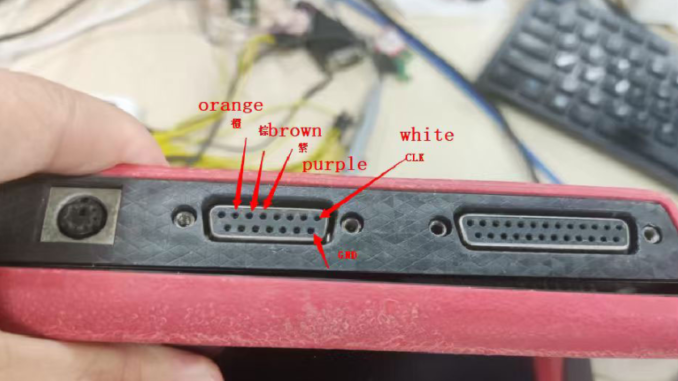
When attempting to read VW MQB49 5D key data via soldering using Xhorse VVDI Key Tool Plus Pad, running into the “CLK not connected” error can bring your workflow to a halt. If you switch to a Godiag clip adapter and the tool works perfectly, it strongly suggests a hardware issue—but is your Xhorse MCU cable actually dead?
Before purchasing a replacement, follow this official diagnostic procedure to accurately isolate the issue.
The Quick Hardware Diagnostic Test
To confirm whether the fault lies within your Xhorse MCU cable or the device itself, perform this simple bypass test:
1. Disconnect the MCU Cable: Remove the standard MCU cable from the setup.
2. Direct Connection Test: Plug your connection lines directly into the DB15 main port located on the top of the Key Tool Plus tablet.
3. Attempt the Read Again: Run the MQB49 5D data reading process once more.
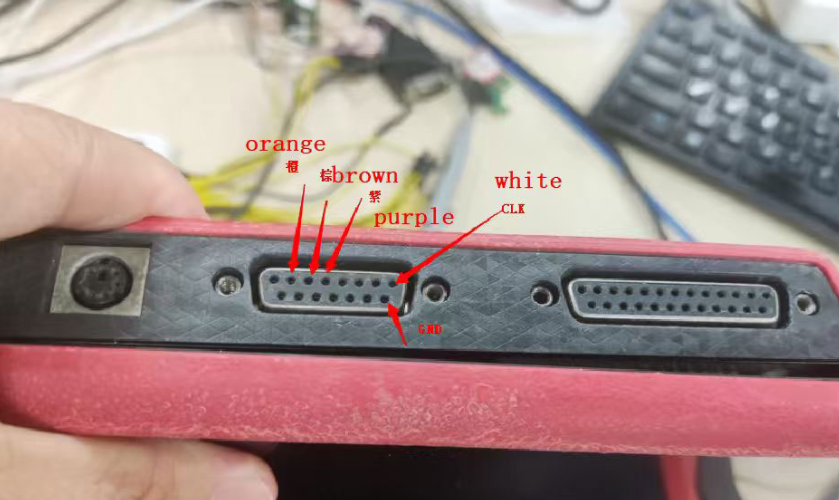
Understanding the Test Results:
• The Device Reads Successfully: If the tablet reads the data perfectly via the direct DB15 connection, your MCU cable/adapter is officially defective and needs to be replaced.
• The Error Persists: If the “CLK not connected” error remains, the root cause may lie within the tablet hardware, the software version, or your soldering points.
Warranty Tip: If your diagnostic results prove the MCU adapter is dead and your device is still under its warranty period, contact your authorized Xhorse distributor immediately to claim a free replacement.
Leave a Reply