One customer reported that his Xhorse VVDI2 key programmer was dead and cannot connect. The label was worn and he needed to transfer authorization to the new one. He wanted to know how to extract the serial number from dead VVDI2.
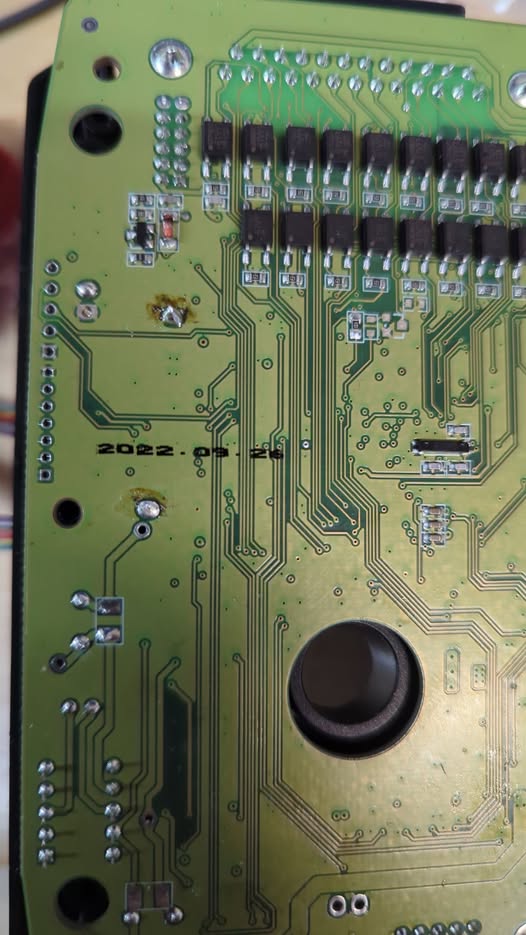
Solution:
To extract the serial number from a dead VVDI2, look for the physical sticker located on the back or side of the device casing. If the label is missing or unreadable, the serial number is usually stored in the unit’s firmware and can sometimes be retrieved by attempting to connect it to VVDI2 software for detection.
1.Check the Sticker: The most reliable method for a “dead” unit is the physical sticker on the back/side labeled “S/N” or “Serial Number”.
2.Check the Packaging: The original box often has a sticker with the device’s serial number.
3.Check SN in APP: Confirm your VVDI2 programmer was bound. If device belongs to you, you should know that.
4.To obtain a serial number from Xhorse engineer:
- Navigate to: C:\Users*\Documents\VVDI2\VAG
- Locate the LOG files generated when using your device.
- Share these files with Xhorse support for serial number issuance.
Leave a Reply