
How to register new Xhorse App on VVDI Mini Key Tool/Condor Dolphin/VVDI key tool? Check step-by-step guide below.
(Xhorse VVDI Mini Key Tool/VVDI key tool/Condor Dolphin etc share the same bind/unbind procedure. Here takes VVDI Mini keytool as an example.)
Step 1: Download App
There are 2 ways to download App, scan the QR code or download App from Google Play store
1)Xhorse App QR code

2) In mobile phone (Android or iOS system), seacrh “Xhorse” in Google Play Store
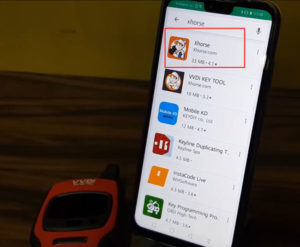
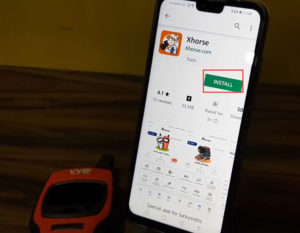
Step 2: Install App
Install and Open App
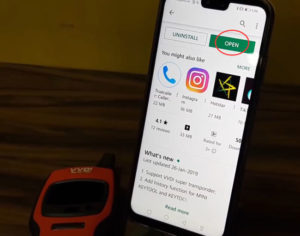
Scrolling app basic information display and press “TRY IT NOW”
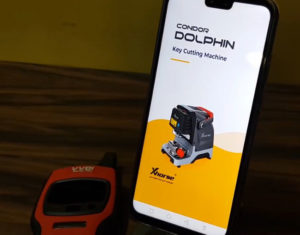
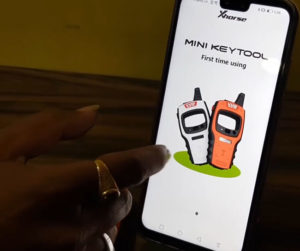
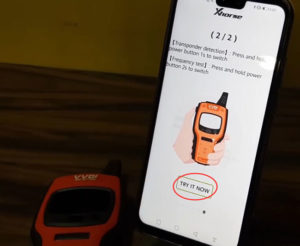
Power on VVDI Mini Key Tool, choose “select” button
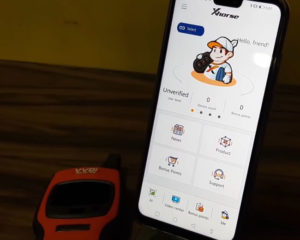
Allow Xhorse to access the device location
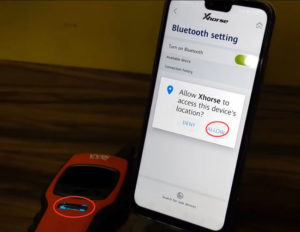
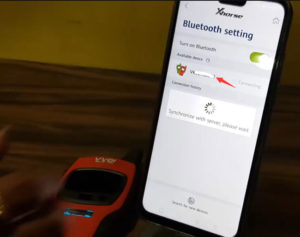
App will display all available devices, press the device you need to connect
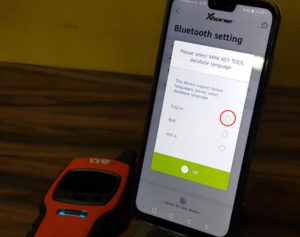
Select database language and continue
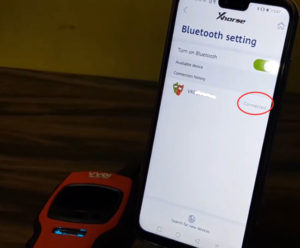
Mini Key tool is connected
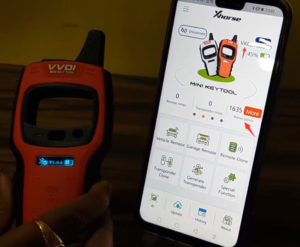
If App prompt there is a database update, do it
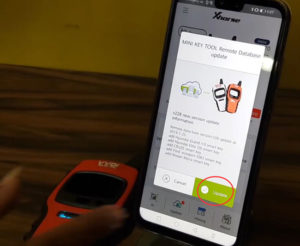
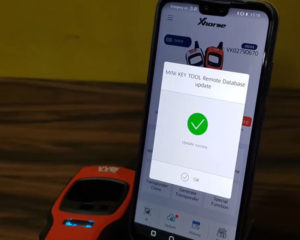
Step 3: Register Account
Go to main interface, press ME center
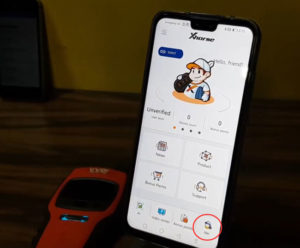
Press please login
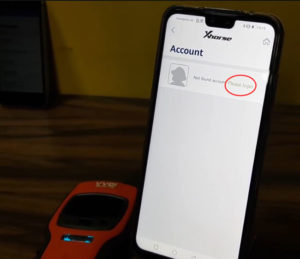
Xhorse app ask to enter mobile phone to register an account
You are allowed to select area code within the app
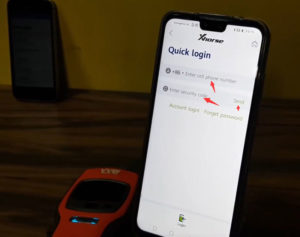
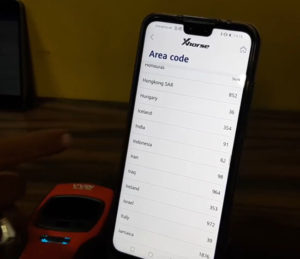
Enter your phone number and verification code to login
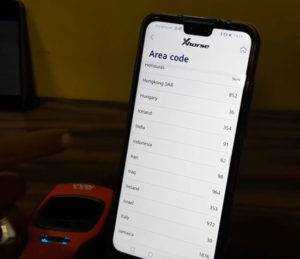
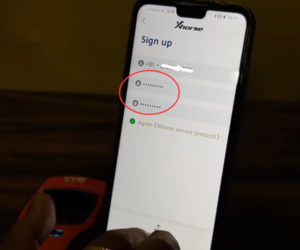
Set and repeat your password
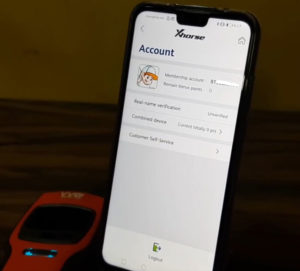
Your account has been created
Condor Dolphin key cutting machine shares the same procedure.
Now you can use the new App and xhorse tools.